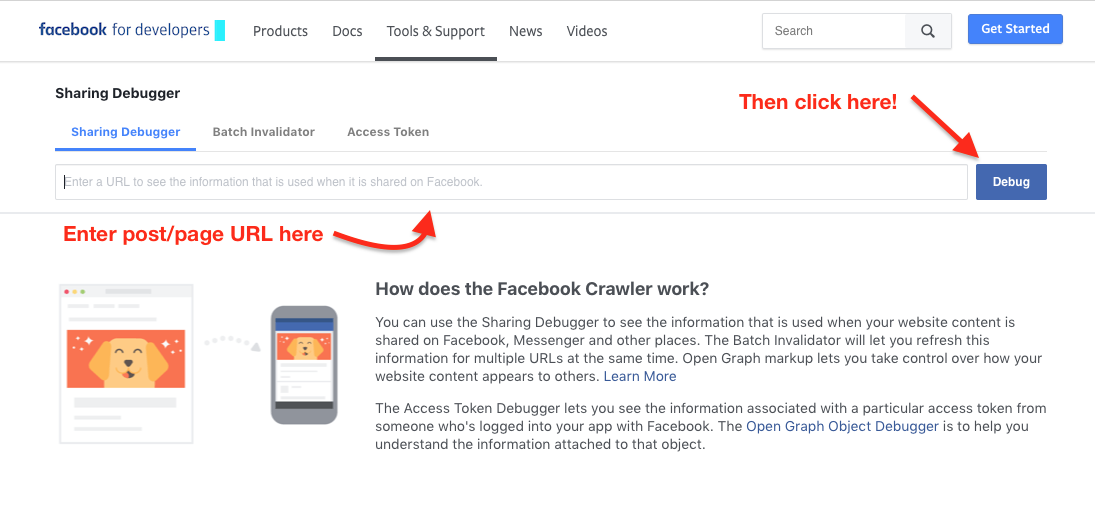
If you’ve ever shared a link on Facebook and found that it didn’t display the expected image, title, or description, you’re not alone. Sometimes, Facebook doesn’t pick up the correct meta information or shows outdated content, leaving your posts looking a bit off. Fortunately, Facebook provides a tool that can help you debug these issues: the Facebook Sharing Debugger.
In this blog post, we’ll walk you through how to use the Facebook Sharing Debugger to identify and fix problems with how your content appears when shared on Facebook.
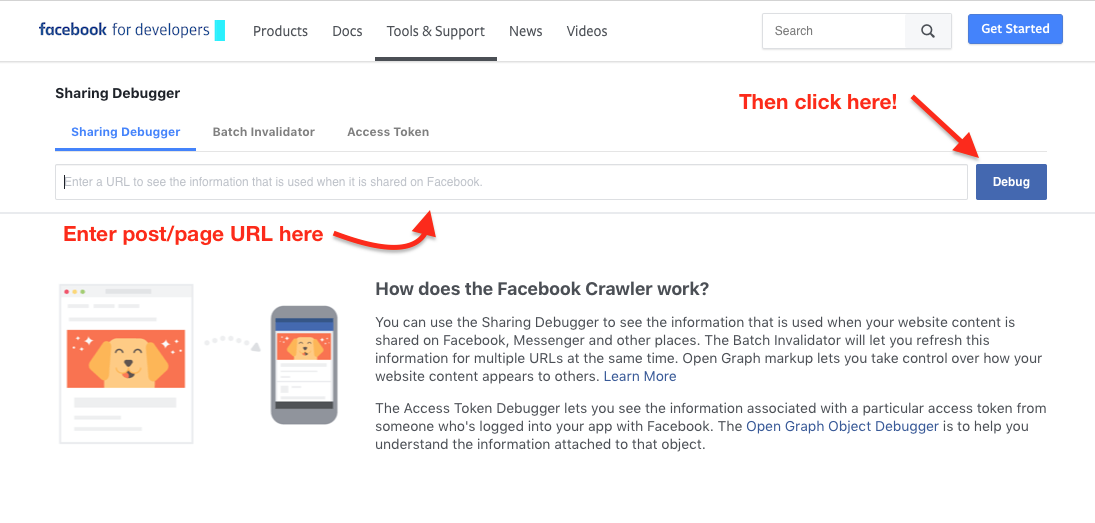
Step 1: Access the Facebook Sharing Debugger Tool
Go to the Facebook Sharing Debugger: First, head to the Facebook Sharing Debugger tool. You can access it at this link: Facebook Sharing Debugger.
Login to your Facebook Developer Account: You’ll need to log into your Facebook Developer account to use this tool. If you don’t have one, you may be prompted to create it.
Enter the URL You Want to Debug: Once logged in, you’ll see an input field at the top of the page where you can enter the URL of the link you want to debug.
Step 2: Debug the URL
After entering your URL, click on the "Debug" button. This will fetch the information Facebook has stored about the URL you provided and display it on the screen.
Step 3: Review the Results
The tool will show you a series of details about the URL, such as:
URL Information: The full URL that Facebook is checking.
Page Title: The title Facebook uses for the link.
Image: The image that Facebook will display when the link is shared.
Description: The meta description or summary Facebook pulls from your page.
If Facebook is not showing the correct image, title, or description, it’s likely due to incorrect or missing meta tags on your webpage.
Step 4: Scrape Again to Refresh Facebook’s Cache
Sometimes Facebook will cache your URL, especially if it was shared previously. If you've updated the page or added new meta tags but Facebook is still showing old information, you can refresh Facebook's cache.
Click on the "Scrape Again" button: This forces Facebook to refresh its cached data for your URL and pull the latest metadata from your page.
Check the Results Again: After scraping, you can check to see if the updated information is showing up correctly.
Step 5: Fix Common Errors
If you notice issues with how the link is displaying, here are some common fixes:
Ensure Open Graph Tags are Correct: Facebook uses Open Graph tags to determine how the link should be displayed. Make sure your page includes proper
<meta>tags like:<meta property="og:title" content="Your Page Title" /><meta property="og:description" content="Your Page Description" /><meta property="og:image" content="Your Image URL" />
Check for Missing Tags: If any tags are missing, the information won’t be fetched properly. Add them to your HTML and scrape again.
Ensure Image Size is Correct: If the image isn’t displaying correctly, ensure your image meets Facebook’s recommended size (at least 1200 x 630 pixels).
Step 6: Test Multiple Links
You can test multiple links with the Facebook Sharing Debugger. If you’re managing a website or multiple pages, you’ll often need to debug various URLs to ensure the correct information is displayed.
Just repeat the process for each URL you want to debug.
Conclusion
The Facebook Sharing Debugger is an essential tool for any developer or marketer looking to optimize how their content appears when shared on Facebook. By using this tool, you can easily debug any issues related to metadata, refresh Facebook’s cache, and make sure your links are displaying exactly as intended.
With the proper meta tags and a little debugging, you can make sure your content shines every time it’s shared on Facebook.